How to Compare Two Text Files in Linux
Compare two text files on Linux using diff, colordiff, vimdiff, and other tools. Covers common flags, output formats, and when to use each approach.
- linux
- diff
- command line
- file comparison
- bash
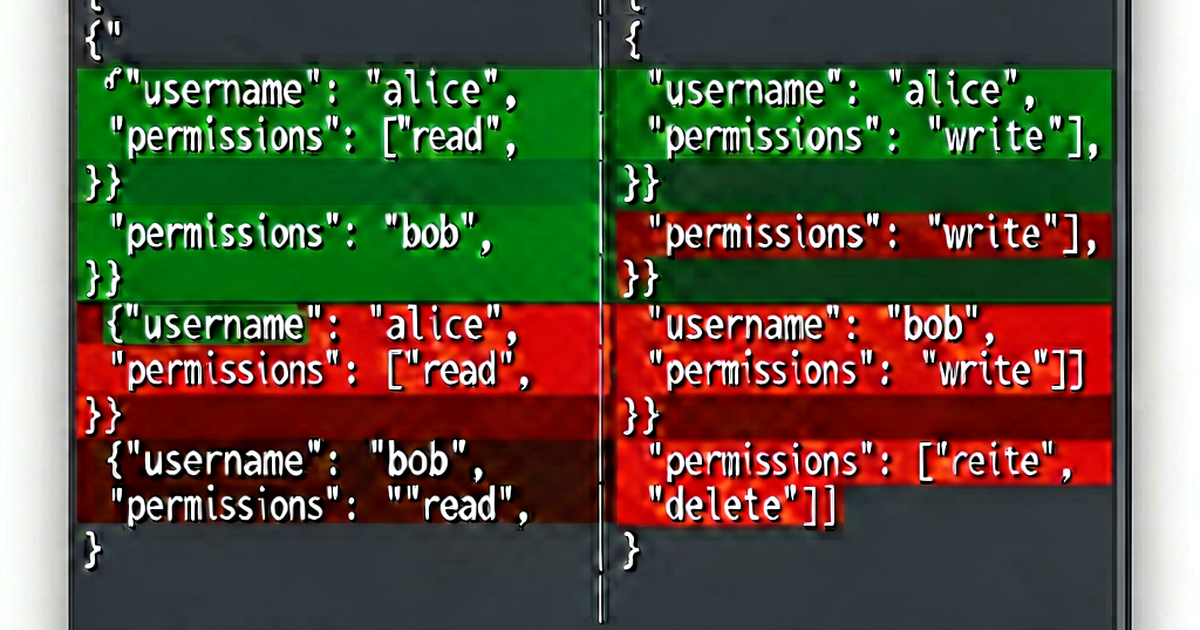
Linux includes several tools for comparing text files, from the classic diff command to interactive side-by-side viewers. Here’s how to use each and when to reach for them.
The diff command
diff is the foundational tool — installed on every Linux system, available in scripts, and the basis for most other comparison tools.
diff file1.txt file2.txtBasic output (normal format):
3c3
< old line three
---
> new line three
5d4
< line only in file1
Reading the output:
3c3— line 3 in file1 was changed to line 3 in file25d4— line 5 in file1 was deleted (file2 has no corresponding line)<— lines from file1>— lines from file2
Exit codes:
0— files are identical1— files differ2— error
This makes diff useful in scripts:
if ! diff -q file1.txt file2.txt > /dev/null; then
  echo "Files differ"
fi
Unified format (diff -u)
The unified format is much more readable and is what git uses:
diff -u file1.txt file2.txtOutput:
--- file1.txt   2026-04-25 10:00:00
+++ file2.txt   2026-04-25 10:01:00
@@ -1,6 +1,5 @@
 line one
 line two
-old line three
+new line three
 line four
-line only in file1---marks the original file,+++the modified file- Lines starting with
-were removed;+were added; space is context @@ -1,6 +1,5 @@means: 6 lines from file1 starting at line 1; 5 lines from file2 starting at line 1
Save a patch:
diff -u original.txt modified.txt > changes.patch
patch original.txt < changes.patch
Common flags
| Flag | Effect |
|---|---|
-u | Unified format (most readable) |
-c | Context format (older style) |
-y | Side-by-side view |
-q | Quiet — only report whether files differ |
-i | Ignore case differences |
-w | Ignore all whitespace |
-b | Ignore changes in amount of whitespace |
-B | Ignore blank lines |
-r | Recursive (compare directories) |
--color | Colorized output (GNU diff 3.4+) |
-U N | Show N lines of context (default 3) |
Examples:
# Ignore all whitespace differences
diff -w file1.txt file2.txt

# Recursive directory comparison
diff -r dir1/ dir2/

# Colorized unified diff
diff --color -u file1.txt file2.txt

# Show more context
diff -U 10 file1.txt file2.txt
Side-by-side comparison (diff -y)
diff -y file1.txt file2.txtOutput:
line one                    line one
line two                    line two
old line three            | new line three
line four                   line four
line only in file1        <
Markers:
|— line differs<— only in file1>— only in file2- (space) — lines are the same
Control the column width with --width=N (default 130).
Colorized diff with colordiff
colordiff wraps diff and adds color:
# Install (Debian/Ubuntu)
sudo apt install colordiff

# Install (RHEL/Fedora)
sudo dnf install colordiff

# Use as a drop-in replacement
colordiff file1.txt file2.txt
colordiff -u file1.txt file2.txt
You can alias it: alias diff=colordiff
Interactive diff with vimdiff
For reviewing large files interactively:
vimdiff file1.txt file2.txtOpens both files in a split Vim window with differences highlighted. Navigate between changes with ]c (next diff) and [c (previous diff). Use :diffput and :diffget to resolve differences.
comm — comparing sorted files
comm is for sorted files and outputs three columns: lines only in file1, lines only in file2, and lines in both:
# Files must be sorted first
sort file1.txt > sorted1.txt
sort file2.txt > sorted2.txt

comm sorted1.txt sorted2.txt
Suppress columns selectively:
# Show only lines common to both files
comm -12 sorted1.txt sorted2.txt

# Show only lines in file1 but not file2
comm -23 sorted1.txt sorted2.txt
cmp — byte-level comparison
cmp reports the first byte that differs, useful for binary files:
cmp file1.txt file2.txt
# file1.txt file2.txt differ: byte 47, line 3
With -l, prints all differing bytes.
When to use which tool
| Situation | Tool |
|---|---|
| Quick check if files differ | diff -q |
| Generate a patch file | diff -u |
| Read a diff easily | colordiff -u |
| Compare directories | diff -r |
| Interactive review/merge | vimdiff or meld |
| Compare sorted text streams | comm |
| Binary file check | cmp |
| Compare in a browser | textdiff.pro |
Comparing files without a terminal
For quick comparisons without SSH or a terminal, textdiff.pro provides an online diff with unified and side-by-side views — paste your text directly in the browser.
Related reading
-
git diff Explained: Every Common Usage with Examples
A practical reference for git diff — comparing working tree, staged changes, branches, commits, and specific files. Includes output format and useful flags.
-
Myers Diff Algorithm: How git diff Finds Changes
A developer-friendly explanation of the Myers diff algorithm — the O((n+m)d) approach that powers git diff, unified diffs, and most modern code review tools.
-
How Does diff Work? The Algorithm Behind File Comparison
The diff utility uses the Longest Common Subsequence algorithm to find the minimal set of changes between two files. Here's how it works, step by step.