git diff Explained: Every Common Usage with Examples
A practical reference for git diff — comparing working tree, staged changes, branches, commits, and specific files. Includes output format and useful flags.
- git
- diff
- version control
- command line
- code review
git diff shows the differences between various states in your repository — working tree, staging area, commits, and branches. Here’s a complete reference with examples.
The three states
Git tracks files in three states:
- Working tree — files on disk, modified but not staged
- Staging area (index) — changes added with
git add, ready to commit - Repository — committed changes
git diff compares between these states or between named commits and branches.
Most common uses
Unstaged changes (working tree vs. staging area)
git diffShows changes in tracked files that have not been staged yet. If you’ve modified a file but haven’t run git add, this shows those changes.
Staged changes (staging area vs. last commit)
git diff --staged
# or equivalently:
git diff --cached
Shows what you’ve staged that will go into the next commit. This is what you should review before running git commit.
All changes since last commit (working tree + staged)
git diff HEADCombines both staged and unstaged changes relative to HEAD.
Comparing commits and branches
# Two commits
git diff abc1234 def5678

# Current branch vs main
git diff main

# Current branch vs origin/main (remote)
git diff origin/main

# What's in branch-a but not branch-b
git diff branch-b...branch-a

# Previous commit vs current HEAD
git diff HEAD~1 HEAD
git diff HEAD~1    # shorthand: HEAD~1 vs working tree
The ... (three-dot) syntax is particularly useful for branch comparisons: branch-b...branch-a shows changes on branch-a since it diverged from branch-b, which is what a pull request shows.
Comparing specific files
# Single file, unstaged changes
git diff src/utils.js

# Single file between branches
git diff main src/utils.js

# Directory
git diff main src/

# Multiple files
git diff HEAD -- src/utils.js src/helpers.js
Reading the output
diff --git a/src/utils.js b/src/utils.js
index a1b2c3d..e4f5g6h 100644
--- a/src/utils.js
+++ b/src/utils.js
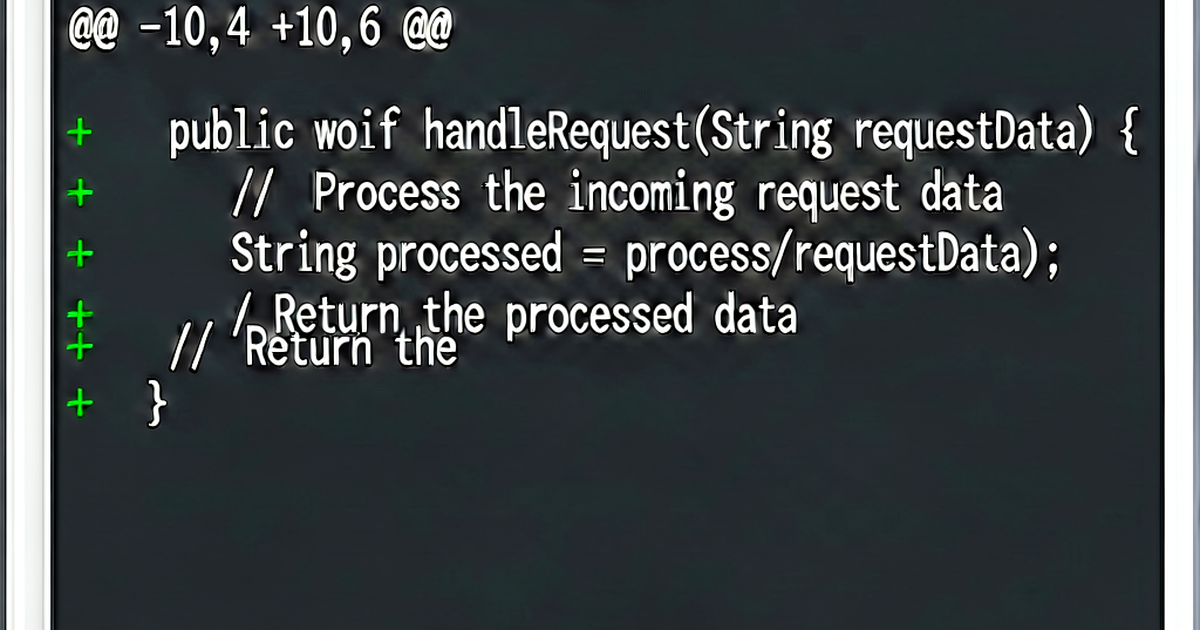
@@ -12,6 +12,7 @@

 function greet(name) {
-  return "Hello, " + name;
+  return `Hello, ${name}!`;
+  // template literal for clarity
 }
diff --git a/... b/...— file being shownindex— blob hashes for the before/after versions--- a/and+++ b/— original and modified labels@@ -12,6 +12,7 @@— hunk header: from old line 12 (6 lines shown), new line 12 (7 lines shown)-lines: removed from old version+lines: added in new version- Lines with spaces: context (unchanged)
Useful flags
| Flag | Effect |
|---|---|
--stat | Show summary: files changed, insertions, deletions |
--name-only | List only file names that changed |
--name-status | File names with M/A/D status |
--word-diff | Highlight word-level changes within lines |
-w / --ignore-all-space | Ignore whitespace changes |
--ignore-blank-lines | Ignore blank line changes |
-U N | Show N lines of context (default 3) |
--color | Colorized output (usually on by default) |
--no-color | Force plain output (for piping) |
-p or --patch | Show patch output (default for most uses) |
--diff-algorithm=histogram | Use histogram diff (often cleaner) |
Examples:
# Quick summary of changes
git diff --stat main

# Only file names that changed
git diff --name-only HEAD~3

# Word-level diff for prose
git diff --word-diff README.md

# Ignore whitespace reformatting
git diff -w HEAD~1
Word-level diff
--word-diff is useful for documentation changes where a line changes but you want to see which words changed:
git diff --word-diff README.mdOutput:
The quick [-brown-]{+red+} fox jumps over the lazy dog.[-removed-] shows deleted text; {+added+} shows inserted text.
For plain text format (easier to copy):
git diff --word-diff=plain README.mdDiff algorithm selection
# Patience diff — better for moved blocks
git diff --diff-algorithm=patience

# Histogram — extends patience, often better for code
git diff --diff-algorithm=histogram

# Set globally
git config --global diff.algorithm histogram
The default is myers. For code with many common lines (like language boilerplate), histogram typically produces more readable diffs.
Generating and applying patches
# Generate a patch file from diff
git diff > my-changes.patch

# Generate proper patch files for mailing (one per commit)
git format-patch main

# Apply a patch
git apply my-changes.patch

# Apply with commit metadata intact (from format-patch)
git am 0001-my-commit.patch
Comparing commits across repos
# Add a remote temporarily
git remote add upstream https://github.com/original/repo.git
git fetch upstream

# Compare
git diff upstream/main
Online diff tool
For quick comparisons outside of git — comparing config files, API responses, or code snippets — textdiff.pro provides a browser-based diff view without any local setup required.

Related reading
-
Unified Diff Format: How to Read and Write Patch Files
The unified diff format (diff -u) explained: hunk headers, context lines, applying patches with the patch command, and common gotchas.
-
Myers Diff Algorithm: How git diff Finds Changes
A developer-friendly explanation of the Myers diff algorithm — the O((n+m)d) approach that powers git diff, unified diffs, and most modern code review tools.
-
How Does diff Work? The Algorithm Behind File Comparison
The diff utility uses the Longest Common Subsequence algorithm to find the minimal set of changes between two files. Here's how it works, step by step.