Unified Diff Format: How to Read and Write Patch Files
The unified diff format (diff -u) explained: hunk headers, context lines, applying patches with the patch command, and common gotchas.
- diff
- patch
- unified diff
- git
- version control
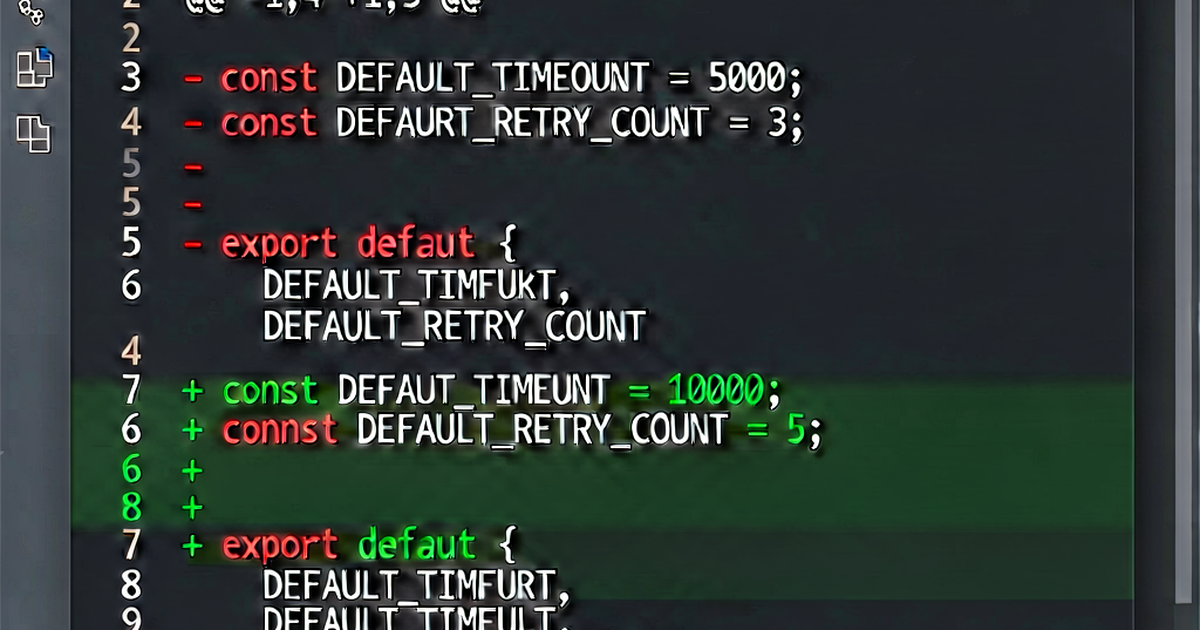

The unified diff format is the standard representation for code changes — the format used by git diff, GitHub pull requests, email patches, and code review tools. Once you can read it fluently, reviewing code becomes significantly faster.
Structure of a unified diff
--- a/src/utils.js
+++ b/src/utils.js
@@ -12,7 +12,8 @@
 function greet(name) {
-  return "Hello, " + name;
+  return `Hello, ${name}!`;
+  // Updated to use template literal
 }

 module.exports = { greet };
A unified diff has three types of sections:
1. File headers:
--- a/src/utils.js
+++ b/src/utils.js
--- marks the original (old) file; +++ marks the modified (new) file. In git diffs, a/ and b/ prefixes are conventional and don’t represent actual directories.
2. Hunk headers (@@ lines):
@@ -12,7 +12,8 @@The format is @@ -<old_start>,<old_count> +<new_start>,<new_count> @@.
-12,7— starts at line 12 of the old file, covers 7 lines+12,8— starts at line 12 of the new file, covers 8 lines (one more, since we added a comment)
When the count is 1, it’s often omitted: -12 means -12,1.
3. Content lines:
- Lines starting with
- Lines starting with
-: deleted from the old file - Lines starting with
+: added in the new file
Multi-file diff
A diff can cover multiple files, with a new ---/+++ section for each:
--- a/config.js
+++ b/config.js
@@ -3,3 +3,3 @@
 module.exports = {
-  timeout: 5000,
+  timeout: 10000,
 };
--- a/README.md
+++ b/README.md
@@ -1,3 +1,4 @@
 # My Project
+
+Updated configuration docs below.

 ## Installation
Context lines
By default, diff -u shows 3 lines of context around each change. Increase it with -U N:
diff -u -U 10 old.txt new.txt   # 10 lines of context
diff -u -U 0 old.txt new.txt    # no context (hunks only)
More context makes patches easier to apply when the exact line numbers have shifted slightly.
Creating a patch file
# Create a patch from two files
diff -u original.txt modified.txt > my.patch

# Or from a git commit
git format-patch HEAD~1
# Creates 0001-commit-message.patch
Applying a patch
The patch command applies unified diffs:
# Apply a patch
patch -p1 < my.patch

# Dry run (don't modify files, just check)
patch --dry-run -p1 < my.patch

# Apply in reverse (undo a patch)
patch -R -p1 < my.patch
The -p1 flag strips the first path component from filenames in the patch (a/src/utils.js → src/utils.js). Use -p0 if the paths in the patch match your directory exactly.
In git:
# Apply a patch file
git apply my.patch

# Apply with committer info preserved (from git format-patch)
git am 0001-commit-message.patch
Common issues when applying patches
“Hunk failed” errors: The patch expects certain context lines that don’t match the current file. Usually means the patch was created against a different version of the file.
# Try with fuzzy matching (ignores a few context lines)
patch --fuzz 3 -p1 < my.patch
Offset warnings: The hunk applied but at a different line number than expected. Usually harmless if the change itself applied correctly.
Reject files: When a hunk fails completely, patch creates a .rej file containing the rejected hunk. You’ll need to apply it manually.
Git diff output specifics
Git adds extra metadata before the ---/+++ headers:
diff --git a/src/utils.js b/src/utils.js
index a1b2c3d..e4f5g6h 100644
--- a/src/utils.js
+++ b/src/utils.js
diff --gitline identifies this as a git diffindexshows the blob hashes and file mode100644is the file permissions (regular file)
For binary files, git outputs:
Binary files a/image.png and b/image.png differFor new files:
--- /dev/null
+++ b/newfile.txt
For deleted files:
--- a/oldfile.txt
+++ /dev/null
Reading a pull request diff
Pull request diffs on GitHub/GitLab are unified diffs rendered in HTML. The key points:
- Red lines (with
-) were in the base branch and are being removed - Green lines (with
+) are being added - Gray lines are context
- Click the
...between hunks to see more context
Visualize your own diffs
Paste any two text blocks into textdiff.pro to see a unified diff view in the browser — useful for comparing config files, API responses, or any text without setting up a local diff tool.
Related reading
-
git diff Explained: Every Common Usage with Examples
A practical reference for git diff — comparing working tree, staged changes, branches, commits, and specific files. Includes output format and useful flags.
-
Myers Diff Algorithm: How git diff Finds Changes
A developer-friendly explanation of the Myers diff algorithm — the O((n+m)d) approach that powers git diff, unified diffs, and most modern code review tools.
-
How Does diff Work? The Algorithm Behind File Comparison
The diff utility uses the Longest Common Subsequence algorithm to find the minimal set of changes between two files. Here's how it works, step by step.